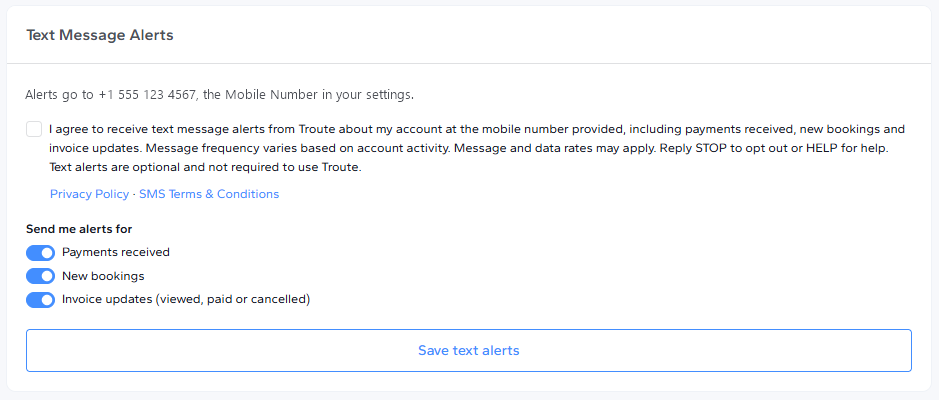
Troute users opt in after logging in to the Troute portal. The screen is only available to logged-in users, so it is shown below.
Log in to the Troute portal.
Open Settings, then User Settings.
Save the mobile number you want alerts sent to.
In the Text Message Alerts card, check the box, choose your alerts, and click Save text alerts.
Settings, User Settings, Text Message Alerts
The checkbox is unchecked by default and reads:
"I agree to receive text message alerts from Troute about my account at the mobile number provided, including payments received, new bookings and invoice updates. Message frequency varies based on account activity. Message and data rates may apply. Reply STOP to opt out or HELP for help. Text alerts are optional and not required to use Troute."
Text alerts are optional and are not required to use Troute. Read the full SMS Terms and Privacy Policy.
Start accepting payments with Troute
Tell us how you sell and we'll put together pricing and a setup plan for your business. No obligation.